

Written by Mo Kahn on
April 13, 2026


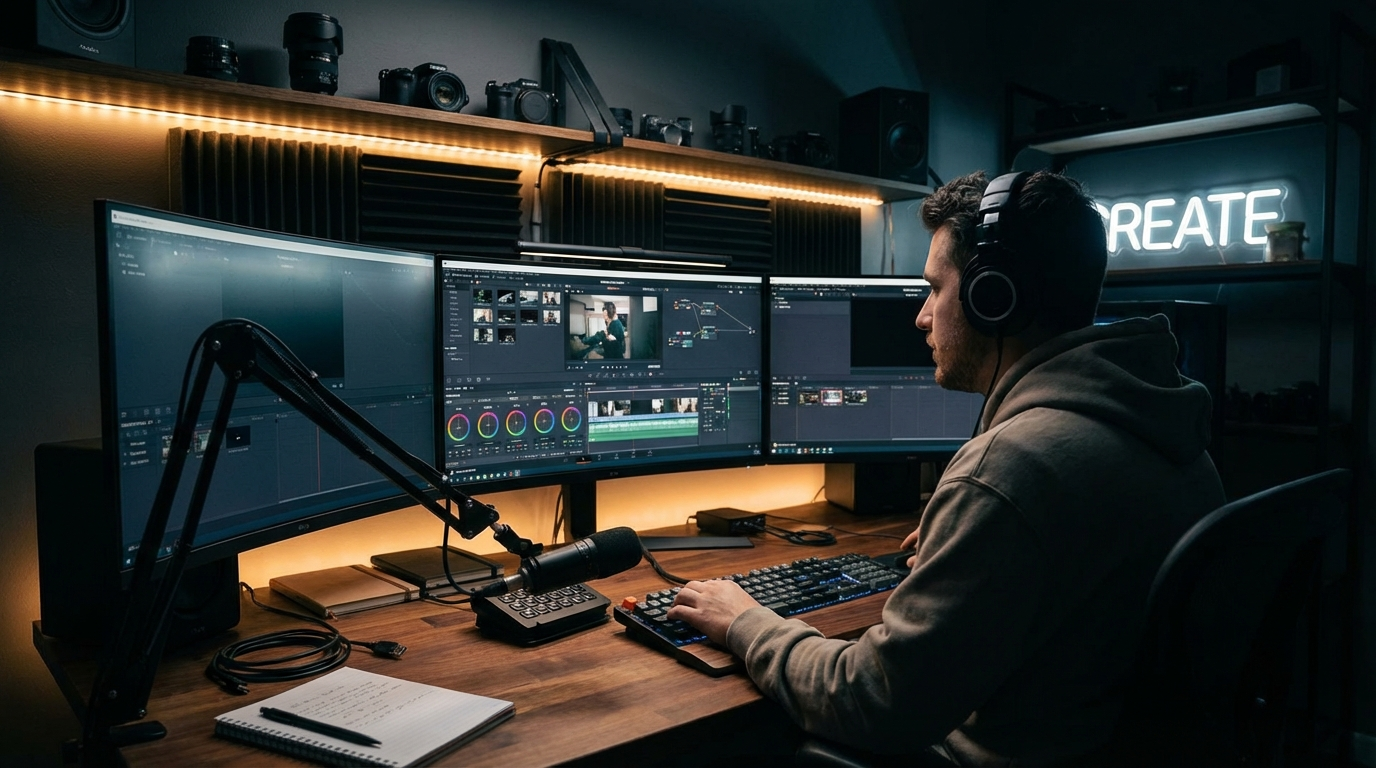
Video is the dominant content format of 2026, and the gap between average and great video comes down almost entirely to editing. The footage matters, sure. The performance matters. But editing is what transforms raw footage into something people actually watch to the end. These tips cover the fundamentals and the advanced techniques - the kinds of decisions that separate a forgettable video from one that gets shared.
1. Cut on Action
The single most important basic editing principle is cutting on action - making your edit at the moment of movement rather than before or after it. When someone stands up, cut mid-motion. When a hand reaches for something, cut as the hand moves. The viewer's eye follows the action, and a cut at the moment of motion feels invisible. Cuts before or after action feel abrupt.
2. Match Your Edit Pace to Your Content
Fast-paced content (action, sports, energetic music videos) wants fast cuts. Contemplative content (documentary, emotional narrative, nature) wants slower cuts with more breathing room. The edit should match the emotional tempo of what you're trying to communicate. Beginners often cut too slowly everywhere; the fix is to let fast content breathe less and slow content breathe more.
3. Start With Your Best Hook
Viewers decide whether to keep watching in the first 3-5 seconds. Your strongest moment - the funniest beat, the most visually striking shot, the most compelling statement - should come first. This doesn't mean starting with the climax (you still need narrative build), but it means not burying your lead. Open strong.
4. Kill Your Darlings
That shot you spent 20 minutes getting? Cut it if it doesn't serve the video. The beautiful B-roll sequence? Cut it if it interrupts the flow. Good editors are ruthless about removing content they love when it doesn't serve the video's purpose. If it doesn't earn its time, it goes.
5. Mix Your Audio Levels Properly
Bad audio kills videos that look great. The basic rule: dialogue and narration sit around -12dB to -6dB, music sits at -18dB to -24dB (lower when dialogue is present), and sound effects sit contextually between the two. Use your editing software's audio meters - don't just guess by ear.
6. Use J and L Cuts
J and L cuts are where audio from the next clip starts before the cut (J) or audio from the previous clip continues after the cut (L). These are fundamental cinematic editing techniques that make sequences feel more fluid and connected. Instead of hard cuts where both audio and video change simultaneously, J/L cuts let one element transition while the other holds, creating a more immersive, professional result.
7. Add Subtle Background Ambience
Silence in video editing is almost never the right choice. Natural location ambience - room tone, outdoor sounds, distant traffic, coffee shop chatter - fills the sonic space between dialogue lines and makes the space feel real. Always record a few minutes of room tone on any shoot, and lay it under your whole timeline.
8. Color Grade Before You Color Correct
Color correction and color grading are different processes. Correction fixes problems (too blue, too dark, inconsistent between clips). Grading creates mood and style (warm and golden, cold and desaturated, high contrast and cinematic). Do correction first to create a neutral, consistent baseline. Then apply grading as a separate step to create the desired aesthetic.
9. Use LUTs as Starting Points, Not Final Looks
Look-Up Tables (LUTs) are a popular way to apply cinematic color grades quickly. The mistake beginners make is applying a LUT at full strength and calling it done. Use LUTs at 30-60% opacity as a starting point, then adjust contrast, saturation, and highlights manually to fit your specific footage. Every LUT behaves differently depending on how your footage was captured.
10. Keep Skin Tones Warm and Natural
Regardless of the overall color grade you're applying, protect skin tones. Human eyes are extremely sensitive to unnatural skin colors. Whatever else your color grade does, make sure faces look healthy and natural. Most editing tools have selective color tools that let you adjust skin tones independently of the rest of the image.
11. Use Transitions Sparingly
The best editing transition is usually a clean cut. Complex transitions (wipes, spins, flips) draw attention to themselves rather than serving the edit. Use them intentionally when they add meaning - a page-turn transition for a chapter change, a whip pan for energy - but default to the cut. Less is almost always more with transitions.
12. Use Motion Graphics to Add Context, Not Just Decoration
Titles, lower thirds, and motion graphics should communicate information - names, locations, data, emphasis - not just make the video look busy. Every animated element should earn its place by adding information or supporting the emotional beat of the moment it appears on screen.
13. Organize Your Project Before You Start
Disorganized project files slow down every editing decision. Before importing a single clip, set up your folder structure: footage, audio, graphics, exports, project files. Label sequences clearly. Color-code clip types. Ten minutes of organization at the start of a project saves hours of hunting for files mid-edit.
14. Work in Proxies for Large Files
4K and higher footage can slow even powerful computers to a crawl during editing. Proxy editing - working with lower-resolution copies during the edit, then relinking to originals for export - keeps your timeline responsive. Every major editing platform (Premiere, Final Cut, DaVinci) supports proxy workflows.
15. Use Keyboard Shortcuts
Professional editors barely use their mouse. Learning the keyboard shortcuts for your editing software - especially for play, cut, trim, and navigation - dramatically increases editing speed. It takes a week to get comfortable, but you'll never go back.
16. Use AI for Transcription-Based Editing
AI transcription tools (like those built into DaVinci Resolve and Adobe Premiere) generate accurate transcripts of dialogue and let you edit video by editing text - delete a line in the transcript, the corresponding video and audio are automatically cut. For interview-based and documentary content, this is genuinely transformative for workflow speed.
17. Leverage AI Background Removal and Object Tracking
AI-powered background removal has reached a quality level where it's genuinely useful for production work, not just casual content. For green-screen-free background replacement, product showcases, or creative compositing, AI background removal in tools like DaVinci Resolve and Premiere Pro now handles complex edges (hair, transparent objects) with impressive accuracy.
18. Use AI to Generate Thumbnail Options
Your thumbnail is as important as your edit - it's the first thing potential viewers see. AI tools including starryai can generate compelling thumbnail imagery that represents your video's content in a visually striking way. Test multiple thumbnail concepts with A/B testing tools to find what performs best for your audience.
19. Automate Repetitive Tasks with Templates
Color grade templates, title card templates, lower third templates, and export presets eliminate repetitive work across multiple videos. If you're producing a series or regular content, building reusable templates in your editing software means consistent quality with significantly less time spent on each new video.
20. Watch Your Edits on Multiple Devices
Your edit might look great on a large monitor with good speakers but terrible on a phone with earbuds - which is how most people will watch it. Before finalizing any video, watch it on your phone, check the audio through headphones and through built-in phone speakers, and review it with the sound off (to check if your visual storytelling works without audio). This multi-device review catches issues you'd otherwise miss until after publishing.
Great video editing is a craft that improves with every project. These tips cover the key leverage points - the decisions that have the biggest impact on whether people watch your videos to the end, share them, and come back for more. Start with the fundamentals: cut on action, nail your audio levels, and cut ruthlessly for pacing. Add the advanced techniques as they become relevant to your work. And as AI tools become more capable and more integrated into standard editing workflows, embrace the ones that save you time without compromising the creative decisions that make your work distinctive.






.svg)