

Written by Mo Kahn on
July 1, 2026


You export a set of starryai portraits, drop them into TikTok, add a trending sound, and the result still feels static. That usually happens in the spaces between images. The transition choice decides whether the sequence plays like a story or a template slideshow.
Transitions do more than connect clips. They set pace, guide the eye, and tell viewers how to read a change in time, mood, or subject. Adobe's overview of video transitions and flow frames them as a tool for keeping motion readable, and that matters even more in vertical edits where viewers judge the first few cuts fast.
Short-form creators feel that pressure every day. On TikTok, Reels, and Shorts, a transition that lasts a fraction too long can kill momentum. A transition that is too flashy can also expose weak sequencing, especially when AI-generated visuals shift style, lighting, or camera angle from one frame to the next.
starryai visuals are strong raw material for this kind of editing because they often come with dramatic color, texture, and composition built in. That strength creates a trade-off. You have more visual impact to work with, but you also need cleaner transition logic so the edit feels intentional instead of random.
This guide stays practical. It focuses on transitions that work on social video, when to use them, when to skip them, and how to apply them quickly in mobile apps and TikTok's editor. If you want a stronger baseline before choosing effects, start with these video editing tips for AI-generated visuals.
The cut is still the backbone of modern editing. One clip replaces the next instantly. No blur, no wipe, no effect trying to prove how clever the editor is.
Videomaker's transition guidance makes this point clearly. The cut is often the most effective option, while more complex transitions work best when they support pacing and storytelling rather than distract from them (Videomaker on transitions that aren't cheesy). That's exactly how social edits should be built.
If you're editing starryai visuals for TikTok, cuts give you speed and contrast. A dreamy anime-style portrait can jump straight into a glossy fashion look, then into a darker cinematic frame, and the abruptness becomes the point. In meme edits, trend edits, and quick product showcases, a cut feels confident.
Cuts also work well when audio is doing the heavy lifting. If the track has a clean beat drop, use the beat as your transition cue instead of layering an effect on top. TikTok's native editor, CapCut, and VN all make this easy because you can zoom into the waveform and place the cut exactly on the sound hit.
Practical rule: If the viewer already understands the change, use a cut. Save stylized transitions for moments that need help.
A few strong use cases:
For sharper mobile editing instincts, starryai's own video editing tips for creators pair well with this approach.
A fade slows the handoff between clips and softens the viewer's attention. Instead of a hard jump, one image recedes while the next arrives more gently. That's useful when you want the mood to breathe.
Fade works especially well when your starryai visuals are emotionally different but still connected. Think before-and-after transformations, season-based aesthetic changes, or a portrait sequence that moves from bright optimism into something more reflective.
On social media, many creators make fades too long. That's the mistake. A fade should feel deliberate, not sleepy. In vertical video, the sweet spot is usually a quick transition that signals a mood change without making the viewer wait.
Use a fade when:
For mobile editing, InShot and CapCut both include basic fade controls that are easy to overuse. Keep the duration short and preview it with sound on. If the fade feels like it steals energy from the clip, trim it back.
One practical trick with starryai content is to fade to black between unrelated visual concepts. If you're moving from fantasy warrior art to a skincare-style selfie glow-up, black gives the audience a reset. If the concepts are closely related, fade directly between the clips to preserve continuity.
Zoom and push transitions create motion even when your source material is static. That makes them especially useful with AI-generated stills. A controlled zoom can make a portrait feel more cinematic. A push can turn a series of separate images into a sequence with direction.
This is one of the easiest transitions for videos to use badly. If the movement doesn't match the composition, the whole edit feels like a default preset.
Here's a visual example of the kind of motion-driven energy this style can suggest:
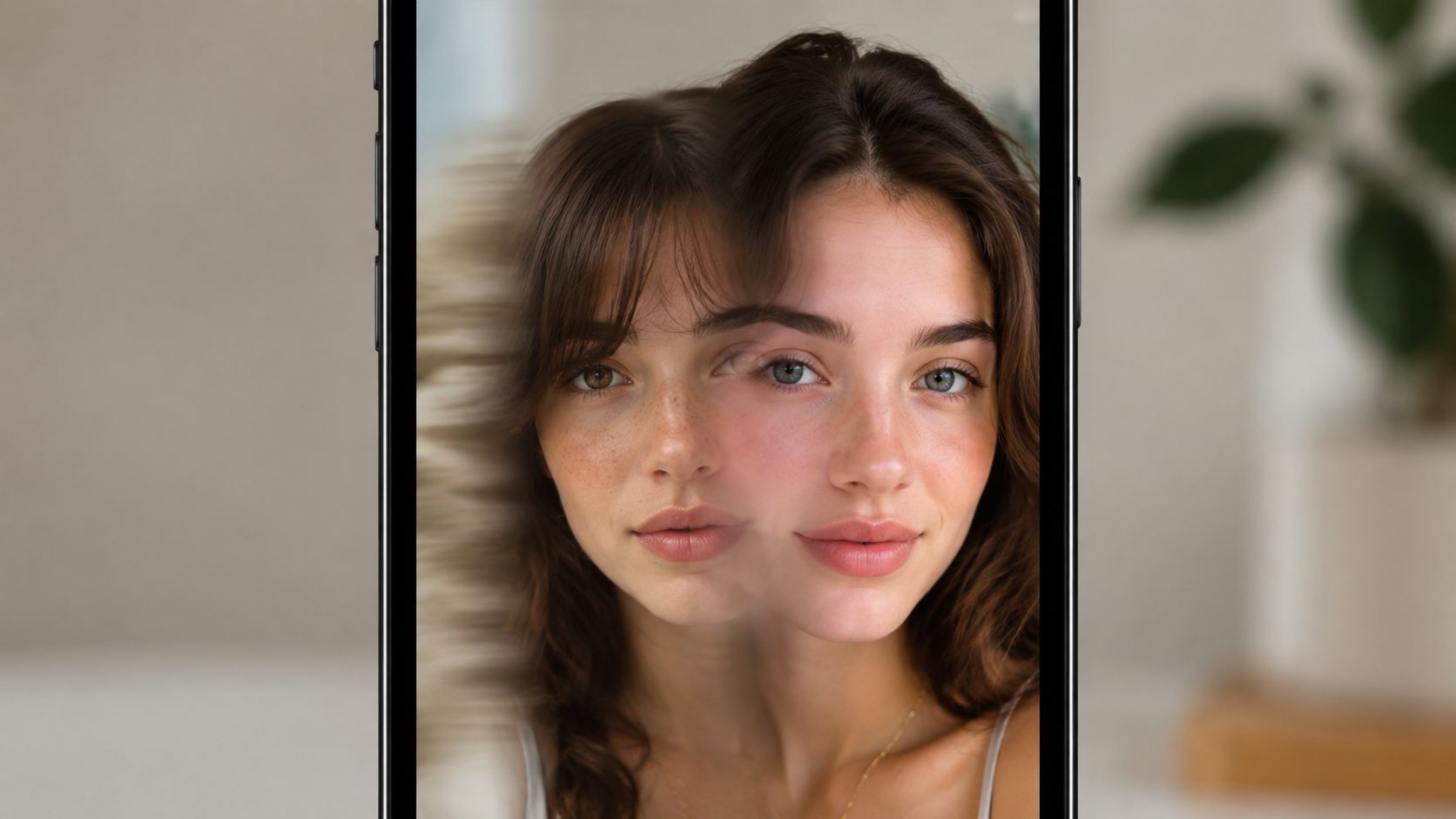
With starryai portraits, zoom in toward the strongest detail. That might be the eye makeup, jewelry, hair texture, or a glowing background element. Don't just scale randomly. Pick the visual anchor first, then move toward it.
Push transitions are stronger when the image sequence already implies direction. If you've generated multiple character concepts facing screen right, a right-to-left push usually feels wrong. Follow the gaze or body orientation when you can.
For TikTok's editor, use the built-in zoom sparingly and stack it with beat timing instead of extra effects. In CapCut, keyframes give you more control than preset transitions. That matters because you can set your own start and end scale, then tune the speed curve.
A few smart uses:
If the clip already has a lot happening, skip the zoom. Motion plus complexity often turns into visual noise.
Wipes are old-school, but they still work when they fit the frame. A wipe moves across the screen and replaces one clip with another. Used well, it creates a clean directional handoff. Used badly, it screams template.
For vertical content, wipes are strongest when they mirror the shape of the platform. A vertical wipe can feel natural on a portrait video because the screen itself is tall and narrow. That makes it useful for transformations, before-and-after reveals, and punchline edits.
Here's the split-screen feel that often pairs well with wipe-based reveals:
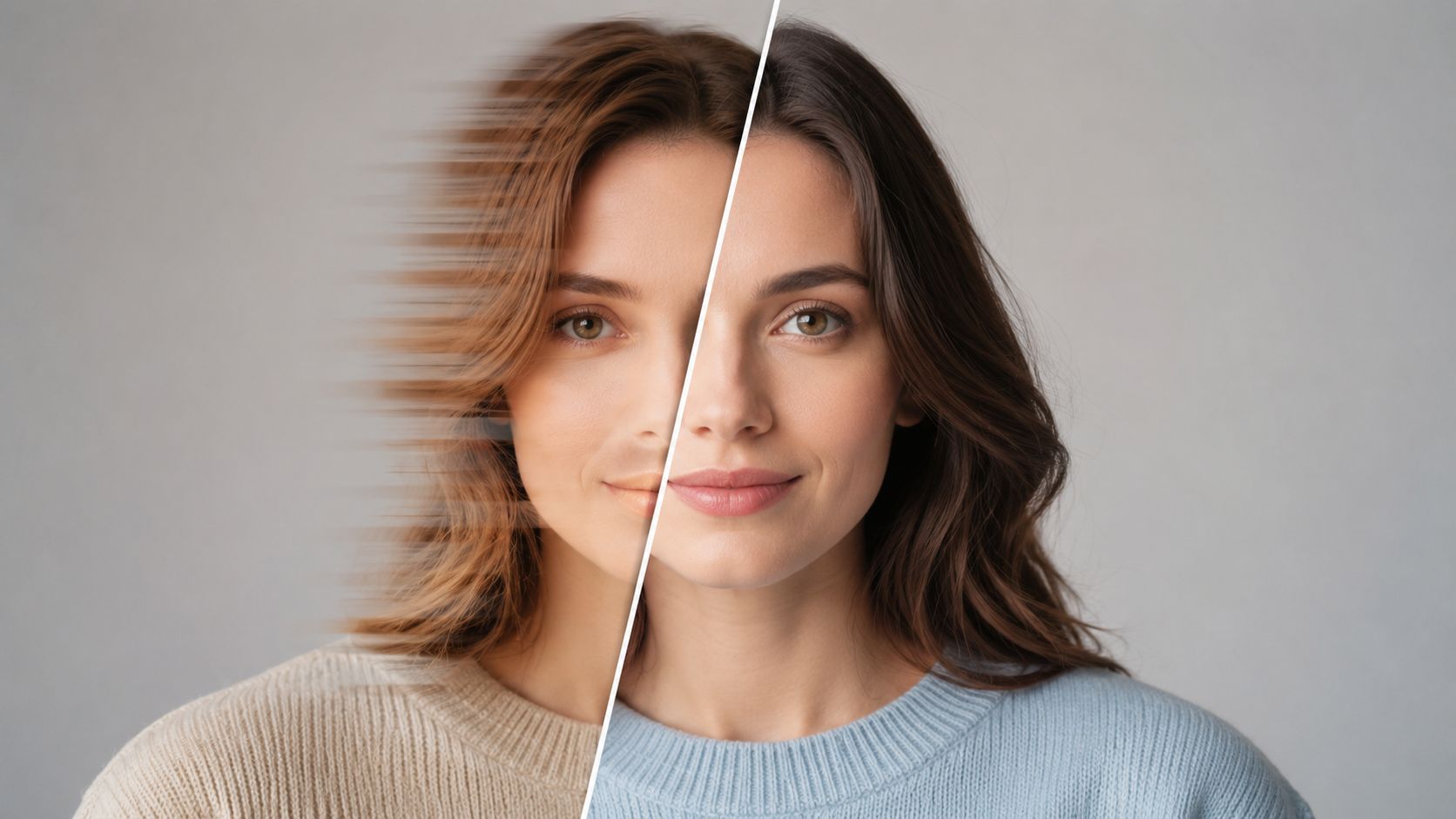
Wipes work best when the movement has a reason. A left-to-right wipe can suggest progression. A top-to-bottom wipe can mimic a reveal. Circular wipes can add playfulness, especially in trend content.
Try them in these scenarios:
Don't let the wipe become the whole show. The audience should notice the reveal, not the plugin.
Mobile apps often include wipes with heavy edge blur or metallic shine. Skip those unless the whole video is intentionally campy. A plain wipe with clean timing usually looks better than a decorative one.
For TikTok editor users, trim the outgoing and incoming clips first, then add the wipe last. If you add the transition too early, you'll often end up adjusting the clips and breaking the timing.
A dissolve blends one image directly into the next. Unlike a fade-to-black, it keeps both visuals on screen during the handoff. That overlap can be beautiful with AI art because similar shapes, textures, and colors melt together naturally.
This is where starryai visuals can shine. If you have multiple portraits with related framing, a dissolve can make the transformation feel organic instead of mechanical. It's especially strong for dreamlike edits, concept art progressions, and mood-led stories.
Use dissolve when visual similarity is already doing part of the work. A face framed in close-up can dissolve into another close-up. A fantasy scene with purple clouds can blend into a neon cityscape if the color family stays related. If the clips have nothing in common, a dissolve usually looks muddy.
The most common mistake is using dissolve on high-contrast scene changes. If one image is bright and minimal and the next is dark and dense, the overlap can look dirty for a brief moment. In those cases, a cut or fade is often cleaner.
A few good fits:
Editors on mobile can use dissolve presets in CapCut, VN, or Adobe Express, but always preview on the phone screen itself. A dissolve that looks elegant on desktop can feel too soft on a small display where detail is already compressed.
A slide transition works well when the viewer needs to understand order fast. On TikTok, Reels, and Shorts, that matters. You often have less than a second to show that one visual is replacing another for a reason.
Use slide when each frame is a new step, version, or option. It gives motion a clear job. Instead of blending two images together, it tells the audience, “we're moving to the next panel now.” That makes it especially useful for starryai creators building story sequences from AI art, such as character upgrades, outfit variants, world-building reveals, or product concept rounds.
Direction does most of the heavy lifting here. Random direction changes make the edit feel cheap because the frame loses spatial logic. Set one movement pattern and keep it for the full sequence unless the story calls for a break.
A practical setup:
For mobile editing, shorter is usually better. A slide that lasts too long feels slow on social and exposes the transition instead of supporting the story. In CapCut, VN, or TikTok's editor, start with a fast preset, then trim it down until the motion reads clearly without dragging. On a phone screen, viewers catch direction faster than detail.
AI art needs one extra check. Starryai images can vary in framing, edge detail, and subject scale from one generation to the next. Before adding the slide, crop each image so the focal point sits in a similar position. If one character is centered and the next is pushed hard to the left, the slide can feel like a layout mistake instead of an intentional transition.
Text also pairs well with slides if you keep it disciplined. Short labels like “draft,” “refined,” “final,” or “fire variant” turn the sequence into a guided walkthrough. Put the text in the same screen area each time so the moving frame does not fight the caption.
If you're producing quick social sequences from AI visuals, starryai's AI reels maker workflow for short-form video creation fits this style of edit well because repeatable transitions are faster to maintain than custom effects on every clip.
Shape and mask transitions are where creators start to build a signature look. Instead of swapping one full frame for another, you reveal the next clip through a circle, square, custom path, or tracked mask. This can look polished fast, especially if your visuals already have strong graphic elements.
For starryai edits, masks are useful because AI images often contain obvious focal points. Faces, moons, glowing symbols, windows, and product silhouettes all make good mask anchors.
Here's a portrait setup that could work well with circular or face-led masking:

The best masks follow the subject, not just the frame. A circular reveal centered on a face is effective because it directs the eye exactly where you want it. A random star-shaped reveal can work for trend content, but it won't carry every project.
Research on narrative transitions in data video offers a useful technical distinction here. Scaling transitions preserve visual coherence while changing size, while morphing transitions transform one icon or shape into another (research on narrative transitions in visualization videos). That logic carries over to social editing. If you need the viewer to keep tracking the same object, scale the mask. If you want to hand off from one concept to another, morph the shape.
Editing instinct: Use scaling when clarity matters. Use morphing when the story is changing form.
On mobile, CapCut's mask tools are more flexible than TikTok's native editor for this type of work. Feather the edge lightly. Too much feather makes the transition feel foggy. Too little can make it feel harsh unless that sharpness is intentional.
Good examples include logo-shaped reveals for branded reels, heart or star masks for playful TikToks, and circular face reveals for selfie transformations.
Cross dissolve and crossfade sit in the same family as dissolve, but the feel is slightly more polished and balanced. Both clips share the frame during the handoff, and the swap feels less like an effect and more like a controlled blend.
This transition is useful when your content is mood-first. Meditation clips, aesthetic diaries, book teasers, spoken-word promos, and slow fashion edits all benefit from a transition that doesn't jab the audience between scenes.
If you're editing to a fast trend sound, cross dissolves usually won't help. They soften edges. That's the opposite of what beat-driven, joke-driven, or reveal-driven edits need. But in a reflective sequence, they can make an image set feel curated instead of assembled.
Cross dissolves are strongest when:
For starryai content, use this transition when you want a transformation journey to feel emotional rather than flashy. A sequence of evolving self-portraits, for example, often lands better with a cross dissolve than with an aggressive flip or wipe.
Keep the duration consistent across the edit. Inconsistent crossfades make the pacing feel accidental.
3D flips and rotates can add energy fast. They create the illusion that the frame is turning in space to reveal the next scene. When they work, they feel modern and kinetic. When they don't, they look like a preset pack trying too hard.
This transition fits content that already leans stylized. Selfie transformations, character reveals, beauty edits, and game avatar intros can handle a little extra drama. It's less suited to calm tutorials or serious product demos unless the whole brand language is motion-heavy.
The trick is restraint. Keep the flip fast and match it to a visual or audio reason. If the clip rotates just because the app offers the effect, viewers feel that immediately.
Use 3D flips when:
For mobile creators, TikTok's editor can handle basic rotational energy, but CapCut gives you better control over easing. Ease-in and ease-out matter here. Linear rotation often feels robotic.
If you're exploring more stylized motion, starryai's AI video effects ideas fit naturally with this kind of high-impact reveal editing.
A match cut is one of the smartest transitions you can use because it doesn't feel like a transition at all. It connects two clips through a shared visual element such as shape, framing, movement direction, or color placement. The viewer experiences continuity even though the subject changes.
AI-generated image sets become powerful. If you generate with intention, you can create recurring motifs across multiple visuals and then connect them in the edit.
Here's a useful breakdown of match cuts in practice:
The match has to be obvious enough to read and subtle enough to surprise. A circular moon becoming a circular earring. A side-profile face becoming another side-profile face. A raised hand becoming a weapon silhouette. Those edits feel satisfying because the brain catches the pattern half a second before the swap completes.
With starryai, plan for match cuts while generating, not after. Keep one compositional anchor stable across prompts. That could be a centered face, a dominant color, a recurring symbol, or the same camera angle. If you generate randomly, match cuts become much harder.
A few strong use cases:
This transition rewards preparation more than plugin skill. When the source images are designed to echo each other, the edit almost cuts itself.
| Transition | 🔄 Implementation Complexity | ⚡ Resource Requirements & Speed | ⭐ Expected Outcomes | 📊 Ideal Use Cases | 💡 Key Advantages |
|---|---|---|---|---|---|
| Cut Transition | Very low, single-frame swap, needs precise timing | Minimal resources; fastest render/export ⚡ | High-impact, punchy edits that retain attention ⭐ | TikTok/Reels, dance, memes, fast product showcases 📊 | Clean, professional look; syncs well with audio 💡 |
| Fade Transition | Low, adjustable duration, simple keyframing | Low resource cost; slightly slower than cuts ⚡ | Smooth, timeless transitions that imply time passage ⭐ | Portfolios, mood-driven reels, before/after stories 📊 | Gentle on viewers; versatile across content types 💡 |
| Zoom / Push Transition | Medium, scale/position animation and sync needed 🔄 | Moderate GPU/CPU use; risk of motion artifacts ⚡ | Energetic, detail-focused reveals that draw attention ⭐ | Selfie transformations, product close-ups, viral TikToks 📊 | Emphasizes focal details; strong with beat drops 💡 |
| Wipe Transition | Low–Medium, directional timing and shape choice | Low to moderate; quick to render on most devices ⚡ | Clear directional progression; highly visible ⭐ | Comedy punchlines, sequential reveals, comparisons 📊 | Attention-grabbing; suggests sequence/progression 💡 |
| Dissolve Transition | Low, overlap opacity blending, simple control | Low–moderate processing; longer than cuts ⚡ | Smooth, organic blends that maintain continuity ⭐ | Aesthetic stories, design showcases, portfolio videos 📊 | Seamless color/image blending; less abrupt than cuts 💡 |
| Slide Transition | Low–Medium, positional animation with pacing control | Low to moderate; efficient on mobile ⚡ | Clear sense of progression; coherent storytelling ⭐ | Tutorials, step-by-step walkthroughs, product comparisons 📊 | Engaging without heavy distraction; good for multi-panel layouts 💡 |
| Shape / Mask Transition | Medium–High, custom masks/shape animation required 🔄 | Higher rendering time; advanced software often needed ⚡ | Distinctive, creative reveals that stand out visually ⭐ | Branded content, character reveals, trend-driven TikToks 📊 | Highly customizable and brandable; strong visual hook 💡 |
| Cross Dissolve / Crossfade | Low, equal overlap blend, consistent duration control | Low–moderate; smooth rendering ⚡ | Elegant, professional transitions for cohesive aesthetics ⭐ | Slow-paced narratives, intros, mood-driven content 📊 | Professional, consistent visual flow; ideal for similar palettes 💡 |
| 3D Flip / Rotate Transition | Medium–High, 3D transforms and axis control; careful timing 🔄 | Higher CPU/GPU demand; may tax mobile devices ⚡ | Trendy, depth-rich reveals with strong wow factor ⭐ | Viral Reels, selfie flips, fashion/beauty transformations 📊 | High shareability and perceived production value 💡 |
| Match Cut Transition | High, requires planning, matching frames/composition 🔄 | Low runtime cost but time-intensive prep; precise editing | Cinematic, clever continuity that impresses viewers ⭐ | Film sequences, artistic portfolios, creative showcases 📊 | Demonstrates high craft; seamless storytelling through composition 💡 |
You are on your phone, building a 20-second Reel from AI images, and the sequence still feels off. The images look good on their own. The edit feels stitched together. In practice, that gap usually comes from transition choice, not asset quality.
A transition sets viewer expectations for the next shot. A cut tells them to keep up. A fade gives them a beat to reset. A slide or wipe adds direction, which helps in explainers and before-and-after edits. A match cut rewards careful planning and makes separate visuals feel connected in a way that reads as high craft, even on a small screen.
That matters on social because pacing gets judged fast. If the handoff between clips feels clumsy, viewers notice it before they process the point of the video. Clean transitions keep attention on the story, product, or transformation instead of on the edit itself.
The practical rule is simple. Pick transitions based on job, not novelty.
For mobile editors, that usually means keeping a small working set. In CapCut or TikTok's editor, cuts, fades, slides, and a restrained zoom push cover a lot of ground without slowing export times or making the video feel overproduced. Save flips, masks, and more stylized moves for moments that need a spike in energy. One strong transition used with intent beats five random ones stacked into the same reel.
Creators using starryai visuals get better results when transition planning starts before editing. Generate image sets with consistent subject placement, similar lighting, and a clear direction of motion. If one frame has the subject centered and the next pushes them to the far edge with a totally different palette, the transition has to work harder to hide the mismatch. If the images already share composition logic, even a basic cut or dissolve feels polished.
A quick workflow helps:
Open with a cut or zoom push for immediate momentum. Use dissolves or crossfades only where you want mood or time shift. Add slides or wipes when the story needs movement across steps, locations, or ideas. In TikTok's editor, keep transition durations short so the app does not soften the pacing. On mobile, shorter usually plays better.
Start with two transition types and get the timing right. That is how editors build a recognizable rhythm.
If you want to turn AI-generated images into short-form video faster, starryai is one option to explore. It's built around creating visuals from selfies, prompts, and emojis, and it fits creators who want to turn those assets into social-ready edits with a stronger visual narrative.


.svg)