

Written by Mo Kahn on
August 15, 2026


You've joined a new Discord server, sent a thoughtful message, and watched it disappear into a fast-moving chat. A few people recognize the username, but most remember the tiny avatar beside it. If that image is blurry, generic, or cropped into an unreadable shape, your presence blends into the member list.
A strong Discord profile picture works like a compact social introduction. It helps regulars identify you, gives new communities a clue about your interests, and can make a personal account, gaming identity, or creator brand feel consistent from the first message.
On Discord, your avatar appears beside your username across servers, direct messages, and voice channels. That repeated exposure makes it one of the platform's most visible identity features, alongside your name and activity. Discord places avatar editing inside User Settings, under the Custom Profiles area, which reflects how central profile customization has become to the product experience. You can review Discord's documented customization flow in its Custom Profiles support guide.
The difference between a forgettable and memorable avatar is easy to notice in practice. A dim selfie with the face pushed toward one edge turns into an indistinct circle in chat. A centered character, bold silhouette, or clean logo remains recognizable even when Discord displays it at a small size. Regulars start associating that visual marker with your messages, jokes, artwork, or gameplay before they consciously remember your username.
A neon cyberpunk portrait says something different from a muted bookish illustration or a minimalist monogram. None is universally better. The useful choice depends on where you spend time and how you want people to categorize you.
For a gaming server, a high-contrast character can make your messages easier to spot during a busy conversation. In a creator community, a consistent visual style can connect your Discord identity with your other work. In a fandom server, an avatar that hints at the shared world can communicate belonging without copying everyone else's exact image.
Animated avatars make this positioning even more visible, but Discord notes that animated avatar support is connected to Nitro. That makes animation a clear premium personalization milestone, rather than a standard expectation for every account.
Practical rule: Choose an avatar people can describe after seeing it briefly. “The purple-haired mage” or “the orange cat with glasses” is more useful than “the person with a dark photo.”
If you manage separate identities for different communities, keep the visual distinction intentional rather than random. A practical Discord multi-account management guide can help you think through account separation, while your avatars provide the immediate visual cue that tells communities which identity they're seeing.
Start with the technical rules before choosing an aesthetic. Discord profile pictures use a 1:1 square source image, and the commonly documented minimum accepted size is 128×128 pixels, while 512×512 pixels is the recommended upload size for sharper display on modern screens, as outlined by Moda's Discord size reference.
Discord then renders that square inside a circular mask across chat, member lists, and profile panels. Your file is square, but your visible result is circular. That distinction causes most cropping mistakes.
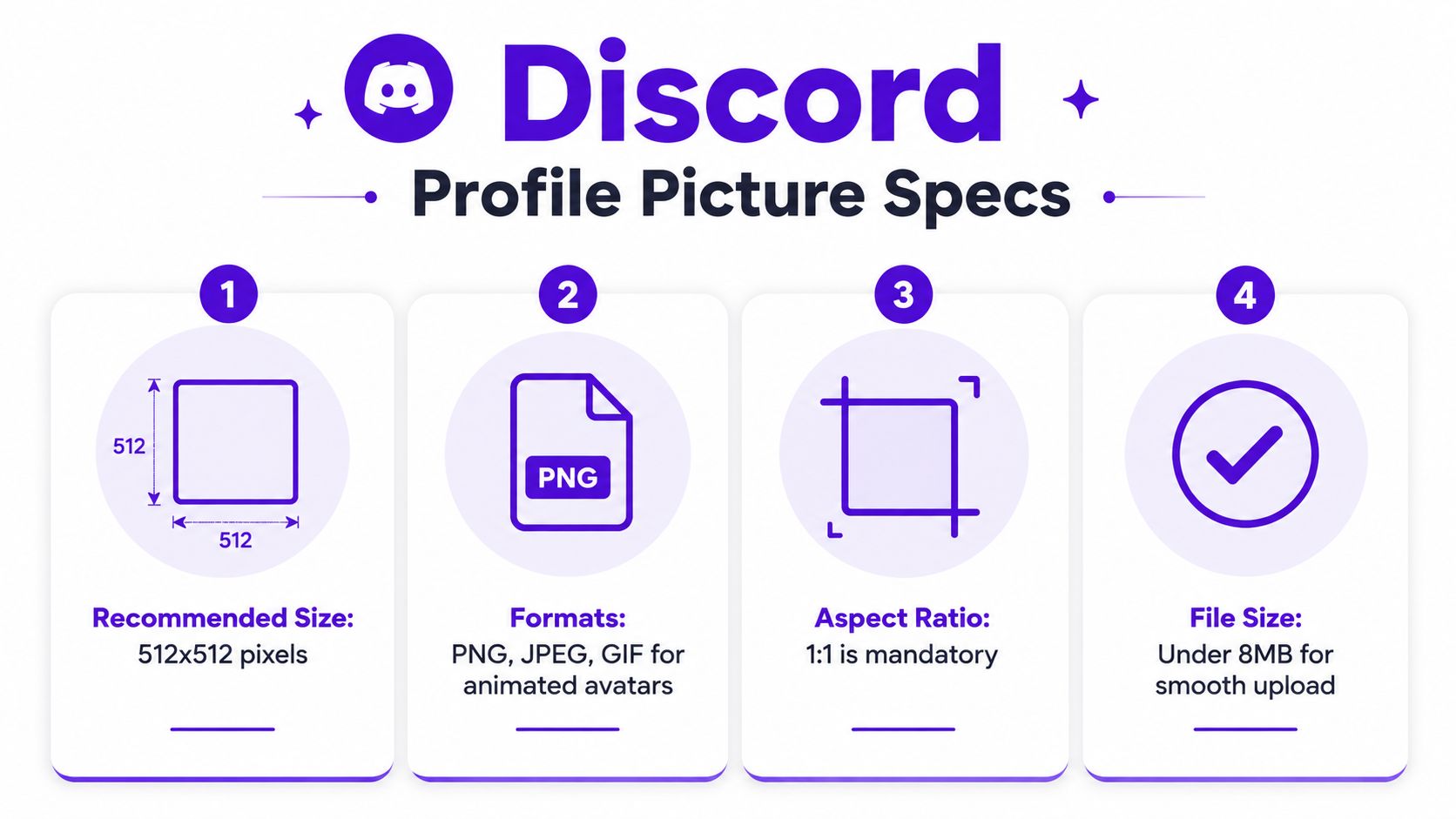
Keep the face, eyes, logo, or central symbol comfortably inside the middle of the canvas. Don't place important text along the corners or close to the outer edges, because the circular mask can remove those areas in chat and profile views.
A reliable preparation checklist looks like this:
PNG works well for crisp illustrations, logos, and images with clean edges. JPEG can suit photographic avatars, although aggressive compression may soften details. GIF is relevant for animated avatars, but animation availability depends on account access and premium features, so a static PNG remains the safest default for most users.
Don't rely on the hard minimum because Discord accepts it. A 128×128 export may look soft after display scaling, especially on sharper screens. Build large, then let Discord reduce the image.
The fastest workflow starts with an identity decision, not a random style. Decide whether the avatar should look like you, represent a character, communicate a mood, or act as a recognizable brand mark. That choice determines whether you should upload a reference selfie, write a text prompt, or combine both.
starryai can turn selfies, text prompts, and emojis into polished visual concepts. For a personal social server, a selfie reference can preserve recognizable features while changing the lighting, clothing, background, or artistic treatment. For an RPG server, text-to-image gives you more control over species, armor, color palette, and expression. For a creator identity, a prompt can establish repeatable elements such as a signature color, emblem, or framing style.
A prompt should describe the subject and the way it needs to survive a small circular display. Include phrases such as centered portrait, head and shoulders, clear silhouette, simple background, and high contrast around the face. Avoid asking for a full-body scene, tiny background details, or text-heavy designs when the final image will appear beside a message.
Try prompt directions like these:
If you use a selfie, choose one with clear lighting and an unobstructed face. The reference doesn't need to be professionally photographed, but extreme shadows, crowded backgrounds, and angled crops can make the generated result less consistent. Generate several directions, then compare them at thumbnail size rather than judging only the large preview.
The first output may look attractive but still fail as a Discord avatar. Look for eyes that are too small, a face that sits too low, accessories that merge with the background, or a color palette that disappears in dark mode. Adjust one variable at a time. Ask for a closer crop, simpler background, stronger separation, or a more distinctive accent color instead of rewriting the entire concept.
A useful test is to reduce the image mentally to its largest shapes. If the subject becomes a gray blur, the design needs stronger contrast. If the identity depends on tiny lettering, replace the lettering with a symbol or visual motif.
For more profile-focused approaches, the starryai AI profile picture guide offers a relevant starting point. Export the final result as a clean square, keep the subject centered, and verify the crop before uploading. The aim isn't to create the most elaborate artwork. It's to create an image that remains unmistakable when Discord makes it small.
A Discord avatar can function as a social signal. The right style tells people what kind of conversation, game, fandom, or creative space you're likely to enjoy before you post anything. Recent independent guides and trend roundups identify recurring preferences for Y2K, vaporwave and neon, dark and moody, minimalist, anime-inspired, and cyber-themed avatars, reflecting a shift toward mood and community fit rather than simple headshots, as discussed by Oreate AI's Discord profile picture guide.
A vaporwave avatar with chrome lettering, pink lighting, and a saturated sunset can work naturally in a gaming or music server. It may feel noisy in a study group where members favor calm, uncluttered profiles. A minimalist icon, limited palette, and generous negative space usually reads more clearly in professional, educational, or productivity communities.
Anime-inspired artwork fits fandom, art, and roleplaying spaces because it communicates a connection to illustrated character culture. Cyber-themed portraits suit technology, competitive gaming, and speculative fiction communities, especially when the design uses a strong silhouette instead of a busy interface-like background. Dark cinematic imagery can support a creator brand, but it needs a bright focal point so the face doesn't vanish against Discord's darker interface.
Use starryai's profile picture generator to translate those directions into focused prompts. Keep the concept personal by changing one recognizable element, such as a favorite color, animal, weapon, instrument, or recurring emblem.
Design test: If your avatar looks interchangeable with dozens of other profiles in the same server, change the focal shape before changing the entire aesthetic.
You can also build a small visual system rather than one isolated image. Keep the same accent color across a gaming avatar, creator avatar, and server-specific variation, then alter the subject or background to show context. That approach preserves recognition while allowing your identity to adapt to different communities.
Discord's documented customization path places avatar editing in User Settings under Custom Profiles. Open your settings, find the profile customization area, select the current avatar, choose the prepared image, and save the change. The labels can vary slightly across desktop and mobile layouts, but the important destination is the profile customization screen rather than a server-specific chat setting.
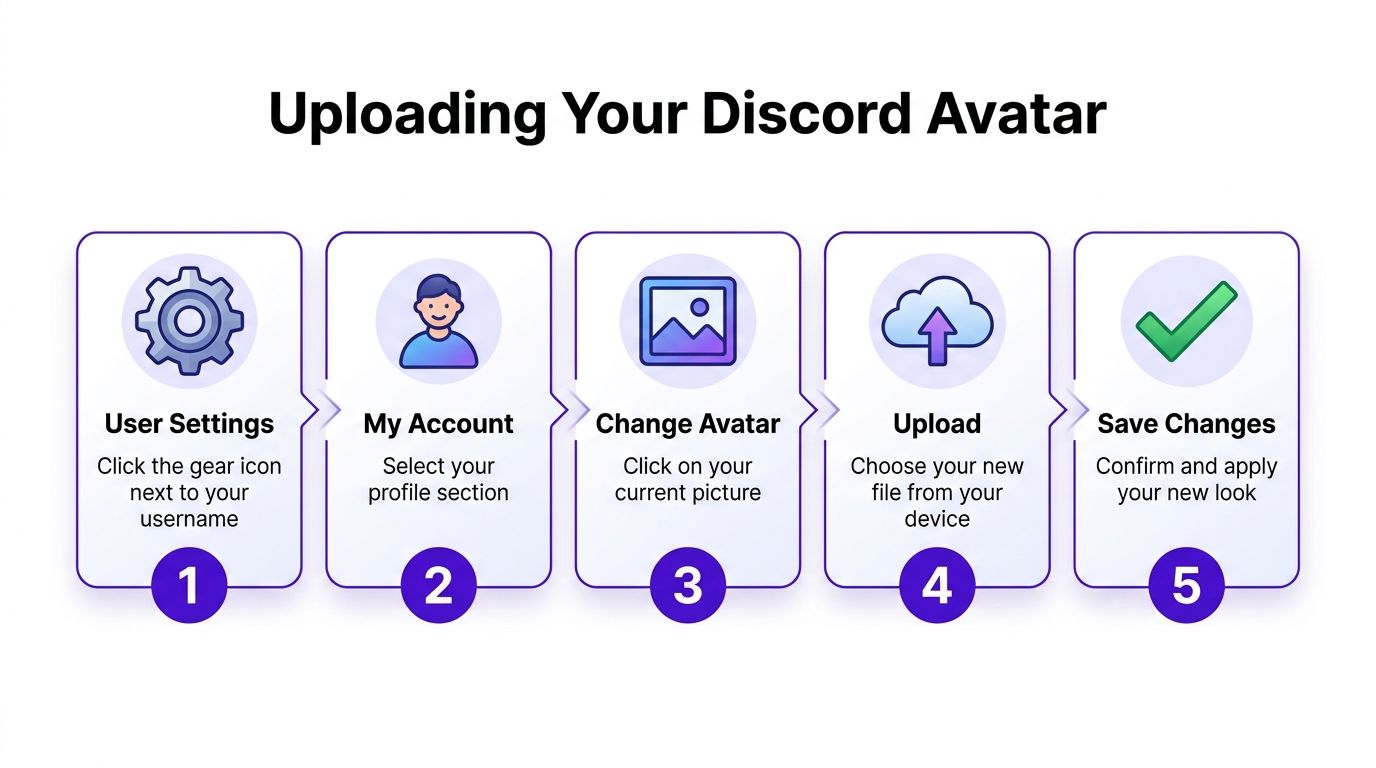
After selecting the file, inspect the crop carefully. Move the image if Discord's interface allows repositioning, then check the smallest chat rendering and the larger profile panel. A face can look perfectly centered in the editor but shift visually if hair, hats, ears, or bright background elements pull attention toward one side.
Use this video as a visual reference for the upload flow:
For a static avatar, test the image against both light and dark interface themes if you regularly use both. Thin outlines and pale backgrounds can disappear in one theme, while excessive glow can make facial details muddy at small sizes.
Animated profile pictures are supported as GIFs, but they're generally tied to Nitro or other premium tiers rather than free accounts, according to Pixelied's Discord profile picture reference. If your account supports animation, keep the central subject stable and make the movement readable without relying on tiny details. Preview the GIF in chat, because a motion effect that looks elegant at full size may turn into visual noise in a small avatar.
A Discord profile picture usually fails for a practical reason, not because the idea was wrong. Diagnose the display problem first, then revise the source file.
Keep a square master for every avatar you publish. Name files by purpose, such as gaming, creator, or fandom, so you can reuse the artwork without downloading a compressed copy from Discord. Before each upload, inspect the thumbnail, the circular crop, and the expanded profile view.
Your avatar doesn't need to be complicated. It needs a clear subject, a deliberate connection to the community, and enough contrast to survive Discord's small circular display.
starryai turns selfies, text prompts, and emojis into high-quality avatar concepts you can refine for gaming servers, creator communities, and fandom spaces. Visit starryai to create a centered, circular-safe Discord profile picture that gives your online identity a more distinctive visual marker.


.svg)